50 Components Course: FlipSprite2D
Table of contents
Demo & Sources
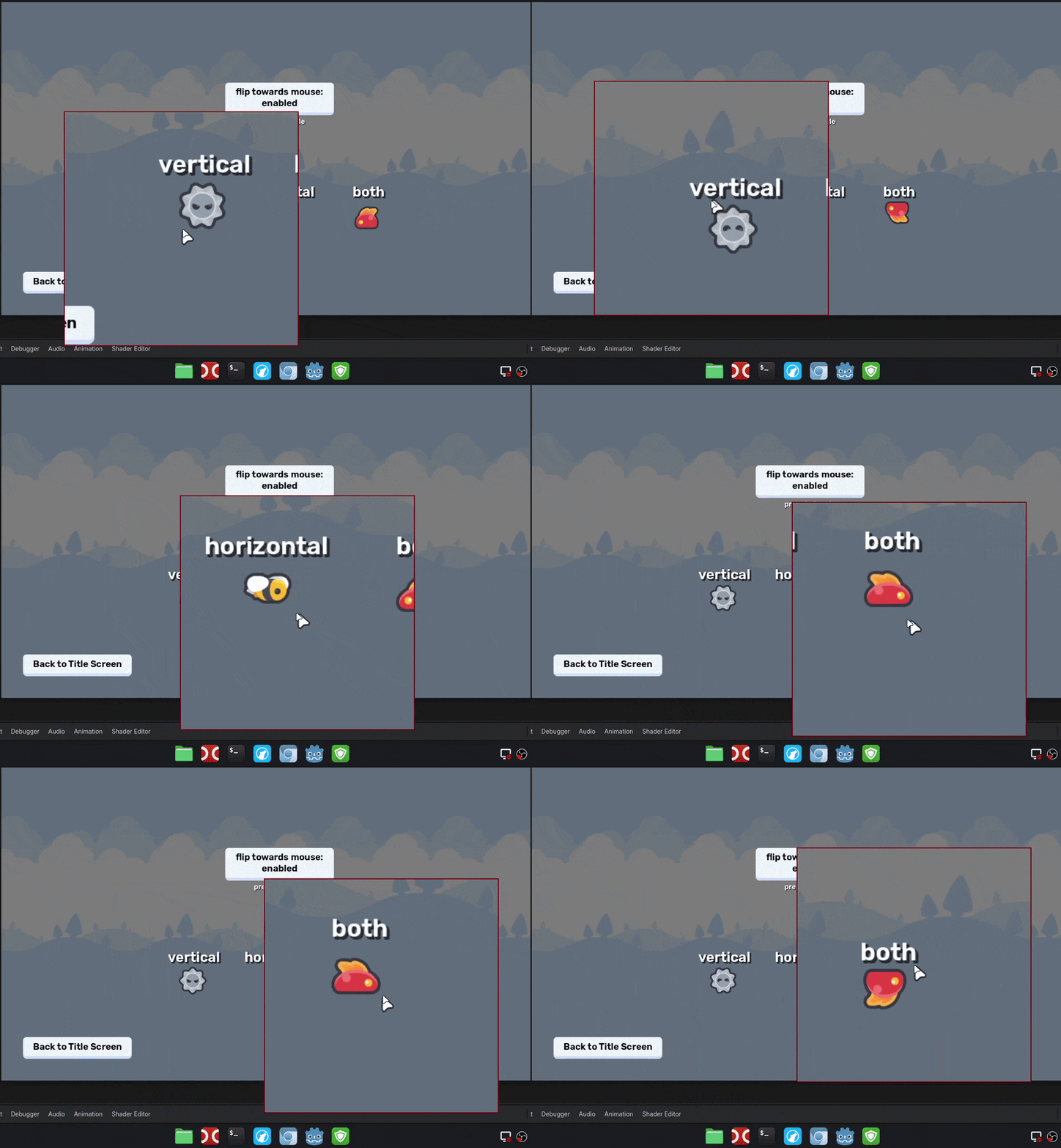
You can try it yourself live here.
The source code is available on GitHub:
Design
What is the best way to design a component? It can be a bit tricky to understand it at first, but here's a checklist:
- rule #1: it only does ONE thing!
- rule #2: it is generic, so you can use it for any game.
- rule #3: it has as little dependencies as possible.
- rule #4: it can be used from the outside, by its owner.
Enforcing rule #1 makes sure you do not overscope your components.
Rule #2 makes sure you can reuse your components, in- and outside your current game project. Compare a Sprite2D node and an RPG talent tree and skill system. Sprite2D does one thing, displays an image. You can use that for any 2D game to display images. The RPG talent tree and skill system is not a component because it is highly specific to RPG games.
Rule #3 helps keeping your components flexible. Fewer dependencies mean that the component can be used in different contexts. Too many dependencies often suggest a too specific use-case.
Rule #4 establishes a standard communication line in your component-based games. There are 3 main ways of communication.
- A component can notify the outside world of an event happening with a signal (outside world is almost always the owner)
- The owner of the component can use the components functionality through its public method(s).
- The owner of the component can affect the behaviour of a component through changing its properties.
To make the process of designing a component easier, ask these three questions.
What is the ONE thing this component does?
A FlipSprite2D flips a Sprite2D or an AnimatedSprite2D node towards a 2D position. This can be done on:
- the horizontal axis,
- the vertical axis,
- or both.
What DATA the component needs to do its thing?
- A Sprite or an AnimatedSprite2D node,
- a 2D position vector to flip towards (Vector2).
How does it communicate with the outside world?
It provides a public method with the following signature:
func flip_sprite_towards(other_position: Vector2) -> void:
    pass
Whenever the sprite needs to be flipped (if it can be), the owner of the component calls this method.
Implementation
@tool
@icon("flip_sprite_2d.svg")
class_name FlipSprite2D
extends Node
The component shows node configuration warnings when the there is no Sprite2D or AnimatedSprite2D selected for the FlipSprite2D component. For this, the script needs to run inside the editor, hence the @tool annotation.
Then, a custom icon is provided which makes to component feel like it is part of the Godot eco system when you add it to the SceneTree.
Finally, a custom class_name is set and the class is extended from the base Node class.
You can read more about node configuration warnings here, and about the @icon annotation here.
@export var sprite: Node2D:
	set(node_2d):
		sprite = node_2d
		update_configuration_warnings()
An export variable is defined for the sprite that can be flipped. It needs to be a Node2D because the component works both with Sprite2D and AnimatedSprite2D nodes.
The custom setter function calls update_configuration_warnings() after setting the new value, so the editor can check if the correct node type was set for the variable.
@export var flip_h: bool = true
@export var flip_v: bool = false
Then, two boolean export variables are defined for the horizontal and the vertical axes. Setting either to true means the sprite can be flipped on that axis.
func _get_configuration_warnings() -> PackedStringArray:
	if not sprite:
		return ["FlipSprite2D needs to have a sprite target set to work!"]
	elif not sprite is Sprite2D and not sprite is AnimatedSprite2D:
		return ["The set sprite target is neither a Sprite2D nor an AnimatedSprite2D!"]
	else:
		return []
Next, the built-in _get_configuration_warnings() method is overrode. There are three cases to handle:
- if the sprite export variable is null, a reminder warning is displayed,
- if the sprite export variable is not null but not a Sprite2D or an AnimatedSprite2D, a different warning is displayed,
- when neither of the previous conditions are true, the correct export variable is set and no warnings are displayed.
func flip_sprite_towards(other_position: Vector2) -> void:
	var new_dir: Vector2 = sprite.global_position.direction_to(other_position)

	if flip_h and sign(new_dir.x) != 0:
		sprite.flip_h = sign(new_dir.x) == 1
	if flip_v and sign(new_dir.y) != 0:
		sprite.flip_v = sign(new_dir.y) == -1
The final part is a public method definition. It flips the sprite towards another 2D position in the game space. This will be used by the owner of the component.
First, calculate the direction vector between the 2D position parameter and the sprite's global position.
Then, check if horizontal flip is enabled. If it is, flip the sprite based on the sign of the direction vector.
Finally, do the same for the vertical flip.
Importantly, we only flip the sprite if the sign of the direction vector is not 0. A zero sign means that there is no change on the given axis (i.e. the sprite and the other_position share the same x or y coordinate).
Example Use Case
Take a look at this Scene setup:
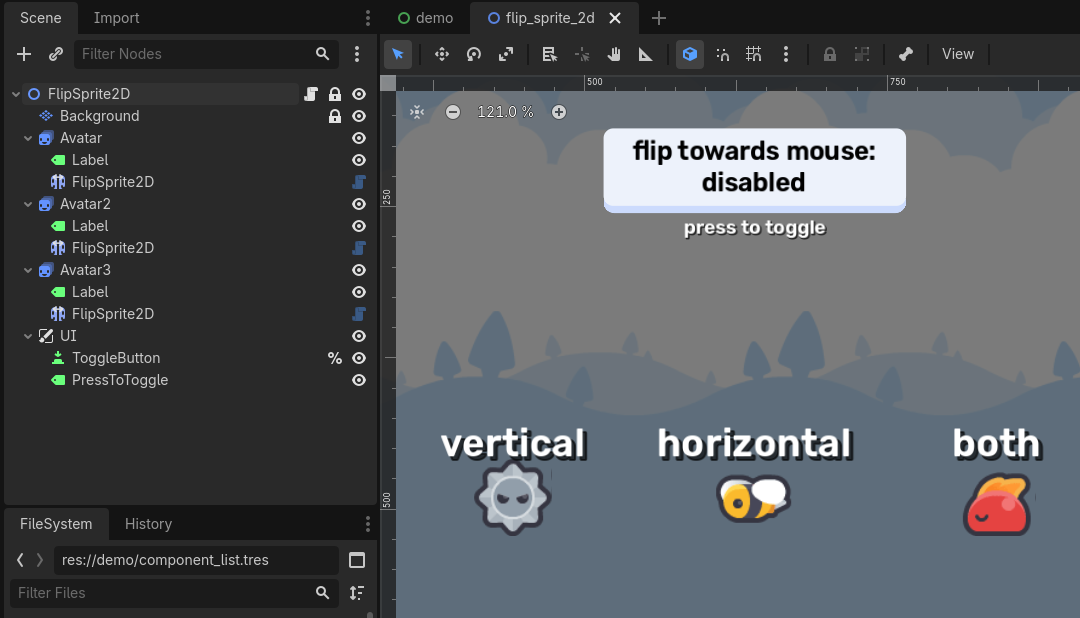
All the avatar nodes are AnimatedSprite2Ds with their own FlipSprite2D component children. The individual FlipSprite2D components are configured with their parent as a Sprite and with different flip flags:
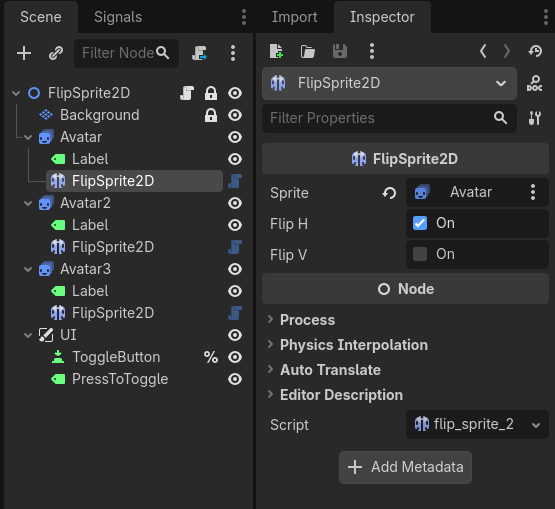
With this setup, we can tie everything together by attach a script to the root node of the scene:
extends Node2D

var enabled := false


func _ready() -> void:
	%ToggleButton.pressed.connect(
		func():
			enabled = not enabled
			%ToggleButton.text = "flip towards mouse:\n%s" % ("enabled" if enabled else "disabled")
	)


func _input(event: InputEvent) -> void:
	if event is InputEventMouseMotion and enabled:
		$Avatar/FlipSprite2D.flip_sprite_towards(get_global_mouse_position())
		$Avatar2/FlipSprite2D.flip_sprite_towards(get_global_mouse_position())
		$Avatar3/FlipSprite2D.flip_sprite_towards(get_global_mouse_position())
Whenever the player moves the mouse, the flip_sprite_towards() method is called for all FlipSprite2D components, passing in the current global mouse position as a parameter.
Note that this code only runs, if the toggle button is set to its enabled state.
That wraps up the FlipSprite2D component! :)
Bonus tip
Another typical use for the FlipSprite2D component in a side-scrolling game: whenever a player / enemy character's velocity changes, flip the sprite based on the new velocity.