50 Components Course: VelocityMovement2D
6 min read
Table of contents
Demo & Sources

You can try it yourself live here.
The source code is available on GitHub:
Design
What is the best way to design a component? It can be a bit tricky to understand it at first, but here's a checklist:
- rule #1: it only does ONE thing!
- rule #2: it is generic, so you can use it for any game.
- rule #3: it has as little dependencies as possible.
- rule #4: it can be used from the outside, by its owner.
Enforcing rule #1 makes sure you do not overscope your components.
Rule #2 makes sure you can reuse your components, in- and outside your current game project. Compare a Sprite2D node and an RPG talent tree and skill system. Sprite2D does one thing, displays an image. You can use that for any 2D game to display images. The RPG talent tree and skill system is not a component because it is highly specific to RPG games.
Rule #3 helps keeping your components flexible. Fewer dependencies mean that the component can be used in different contexts. Too many dependencies often suggest a too specific use-case.
Rule #4 establishes a standard communication line in your component-based games. There are 3 main ways of communication.
- A component can notify the outside world of an event happening with a signal (outside world is almost always the owner)
- The owner of the component can use the components functionality through its public method(s).
- The owner of the component can affect the behaviour of a component through changing its properties.
To make the process of designing a component easier, ask these three questions.
What is the ONE thing this component does?
It moves any 2D node based on a velocity vector. Can be used for both linear movement (like bullets, lasers) or parabolic arcs (like grenades, arrows) via gravity.
What DATA the component needs to do its thing?
- a target Node2D to move
- speed, in px/s
- gravity value: 0.0 means linear movement
- a
boolflag for enabling/disabling velocity-based rotation
How does it communicate with the outside world?
This component does not need to communicate with the outside world. It handles the movement itself directly for the target node, in the _physics_process() virtual method.
Implementation
@tool
@icon("velocity_movement_2d.svg")
class_name VelocityMovement2D
extends Node
The component shows node configuration warnings when the there is no target selected. For this, the script needs to run inside the editor, hence the @tool annotation.
Then, a custom icon is provided which makes the component feel like it is part of the Godot eco system when you add it to the SceneTree.
Finally, a custom class_name is set and the class is extended from the base Node class.
You can read more about node configuration warnings here, and about the @icon annotation here.
@export var target: Node2D:
	set(new_target):
		target = new_target
		update_configuration_warnings()
An export variable is defined for the Node2D target.
The custom setter function calls update_configuration_warnings() after setting the new value, so the editor can check if the correct node type was set for the variable.
@export var speed: float = 500.0
@export var gravity: float = 0.0
@export var rotate_based_on_velocity: bool = false
Then, a speed variable is defined for the linear movement's speed, in px/s.
A gravity export variable can also be set. 0.0 means linear movement with no arcs.
A bool flag is used for enabling/disabling velocity-based rotation. This is useful when you want to target to be rotated along the arc-based movement (e.g. a flying arrow).
var _velocity: Vector2The current velocity value is stored in a Vector2 variable.
func _ready() -> void:
	if not target:
		target = get_parent()

	_velocity = Vector2.RIGHT.rotated(target.global_rotation) * speed
Inside _ready(), if the target is not set via the inspector, it defaults to the parent Node of the component, using Node.get_parent().
Then, the inner velocity is initialized based on the target node's global_rotation property and the speed variable.
func _get_configuration_warnings() -> PackedStringArray:
	if not target or not target is Node2D:
		return ["No valid target set for the VelocityMovement2D Component!"]
	else:
		return []
Next, the built-in _get_configuration_warnings() method is overrode. There are two cases to handle:
- if the target export variable is null or not a Node2D, a reminder warning is displayed,
- when the correct export variable is set no warnings are displayed.
func _physics_process(delta: float) -> void:
	if not is_instance_valid(target) or Engine.is_editor_hint():
		return

	if gravity > 0:
		_velocity.y += gravity * delta
	target.global_position += _velocity * delta

	if rotate_based_on_velocity:
		target.rotation = _velocity.angle()
Next, the built-in _physics_process() method is overrode.
A safeguard is provided first: if there is no valid target or the code is running inside the Godot editor, we can return early.
Then, finally:
- First: if gravity is provided, apply the gravity-based acceleration over time.
- Second: translate the target node's position along the velocity vector.
- Third: if enabled, adjust the target's rotation to match its flight path.
Example Use Case
Take a look at this Scene setup:
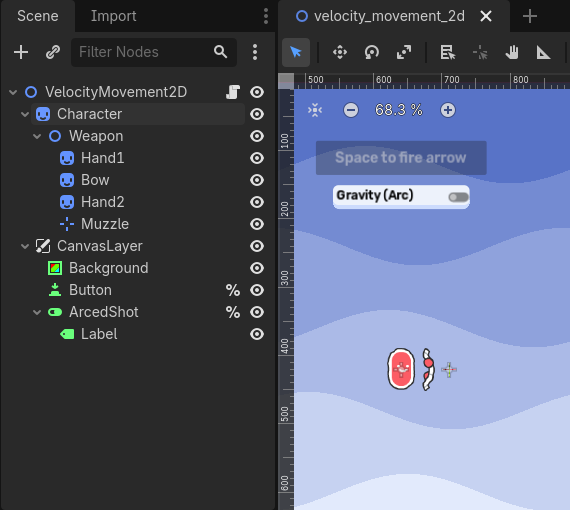
Arrows need to be spawned from the muzzle's current transform and they need to move independently from the player character.
The code itself is straightforward:
extends Node2D

@export var arrow_scene: PackedScene


func _input(event: InputEvent) -> void:
	if event.is_action_pressed("fire"):
		var new_arrow := arrow_scene.instantiate()
		new_arrow.global_rotation = $Character/Weapon/Muzzle.global_rotation
		new_arrow.global_position = $Character/Weapon/Muzzle.global_position
		get_tree().current_scene.add_child(new_arrow)
		new_arrow.get_node("VelocityMovement2D").gravity = 980 if %ArcedShot.button_pressed else 0
		new_arrow.get_node("VelocityMovement2D").rotate_based_on_velocity = %ArcedShot.button_pressed
	if event is InputEventMouseMotion:
		$Character/Weapon.look_at(get_global_mouse_position())
When the fire button is pressed:
- instantiate a new arrow_scene
- update its global rotation and position based on the Muzzle
- add it as a new child under the current scene's root Node
- update the gravity and rotate_based_on_velocity
boolflag of the VelocityMovement2D component, based on the toggle in the scene.
When the mouse is moved, the character's weapon is updated to look at the global mouse position.
The arrow itself needs no code attached to it, just a basic Scene setup:
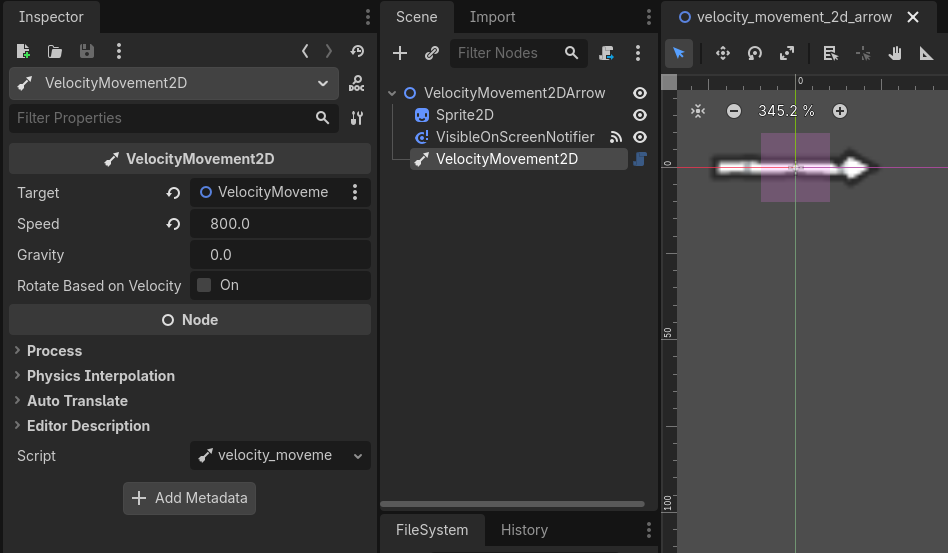
The VelocityMovement2D component's target and speed variables are set properly.
There is no other code needed here. A VisibleOnScreenNotifier2D is added so the arrow deletes itself after leaving the screen. This is done via the editor: the screen_exited signal is connected to the root Node's queue_free() method.
That wraps up the VelocityMovement2D component! :)